

This help doc walks you through setting up a mini PC as a digital signage kiosk for DisplayHub.
1) Get your PC ready (Windows)
Finish the basic Windows setup.
Set the screen and PC to never automatically turn off.
Turn off any screen savers.
Enable Remote Desktop if you want to manage it remotely.
Allow access to
*.displayhub.euon ports 80/443 in Windows and your network firewall.
2) Create a DisplayHub shortcut that opens in fullscreen
Find your browser (Chrome, Edge, or Firefox).
Create a shortcut (for example, in your Documents folder).
Edit the shortcut so it opens DisplayHub in kiosk/full screen mode. For Chrome, set the Target field to:
"C:\Program Files\Google\Chrome\Application\chrome.exe" --kiosk "https://d.displayhub.eu" --start-fullscreen⚠️Tip: Keep the quotation marks exactly as shown.
3) Make DisplayHub start automatically when Windows starts
Press Windows Key + R, type
shell:startup, and press Enter.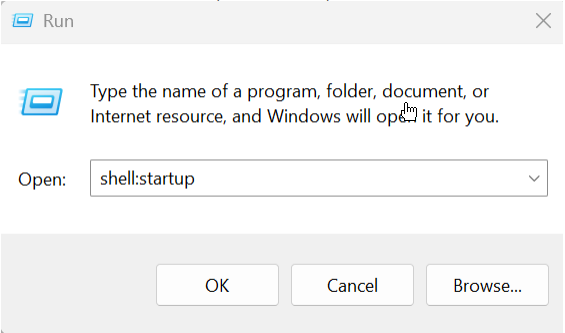
You should see a file explorer window - it will likely be empty. Copy the shortcut you just made in there and close the window.
4) Enable automatic login
This lets the PC sign in by itself after a restart and launch DisplayHub without anyone touching it.
Press Windows Key + R, type
regedit, press Enter.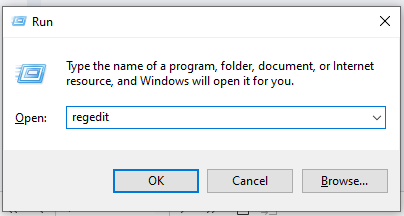
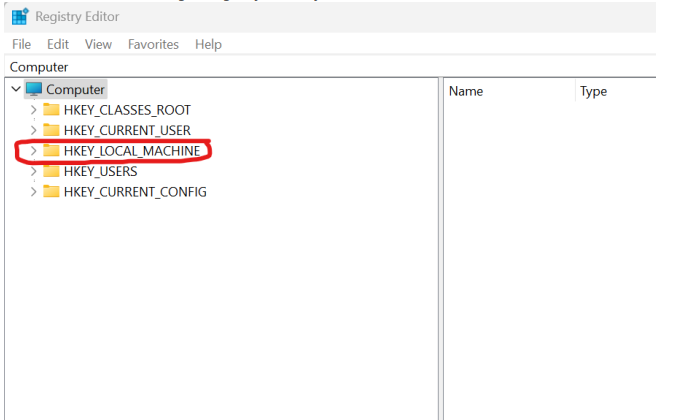
Go to:
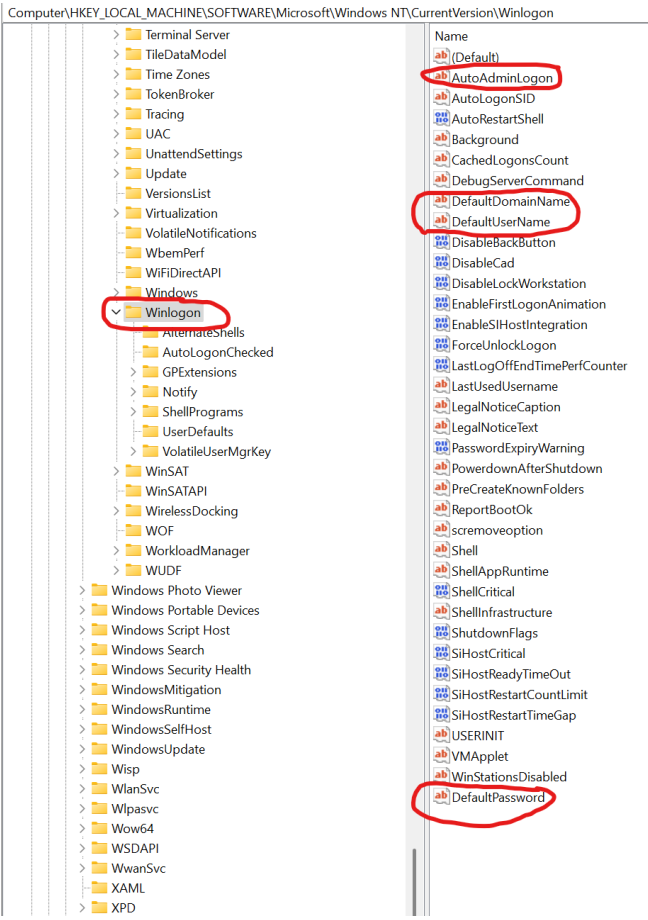
HKEY_LOCAL_MACHINE\SOFTWARE\Microsoft\Windows NT\CurrentVersion\WinlogonAdd (if you don't see it) or update these values:
AutoAdminLogon =
1DefaultUserName = your Windows username
DefaultPassword = your Windows password
Optional: If the machine is domain-joined create another key called DefaultDomainName and enter your domain e.g. abc.com
Close the Registry Editor.
5) Restart and you're done
After restart, the PC will log in and launch DisplayHub in full screen automatically.